
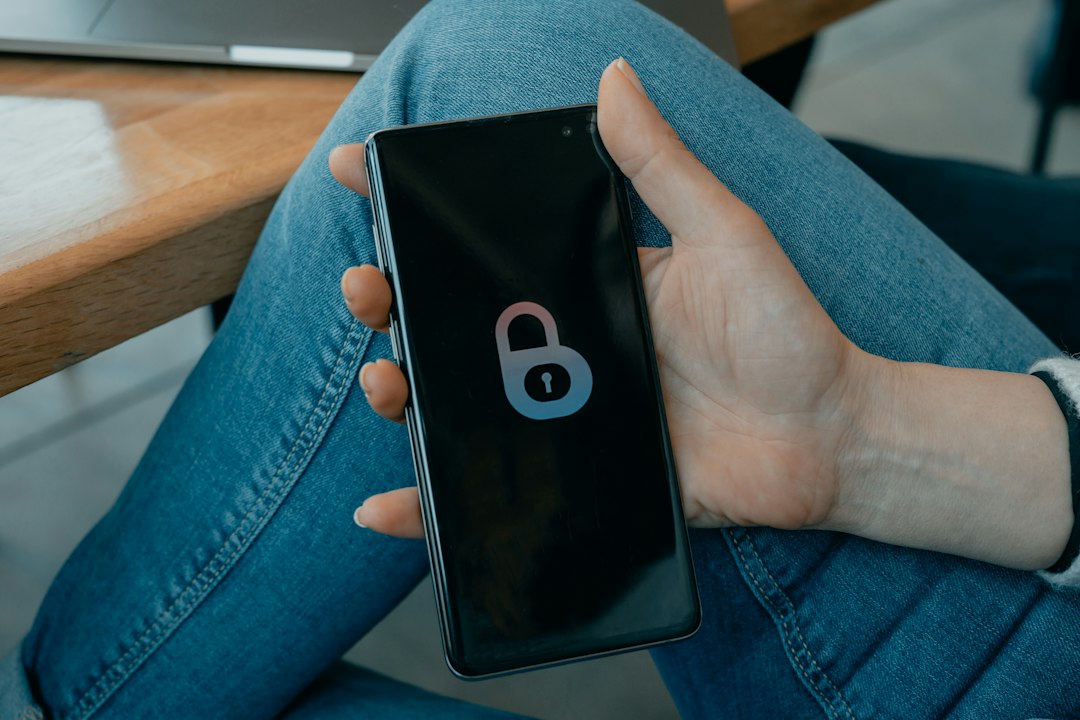
Safe App Permissions: What Teens Should Say Yes or No To
You download a new app, and before you can even see the home screen, pop-ups appear: "Allow access to your contacts? Your location? Your microphone?" Most of us tap "Allow" without thinking. But every permission is a door into your phone, and some doors should stay closed.
What are app permissions?
Permissions are the rules that decide what an app can reach on your device. That can include your camera, microphone, photos, contacts, location, calendar and notifications. Some access is necessary. A video-call app can't work without a camera. But a simple torch or puzzle game has no need for your contacts or microphone.
Why permissions matter for teens
- Privacy: Location access can reveal your home, school and daily routine.
- Safety: Contact and photo access can expose information about friends and family, not just you.
- Scams and malware: Fake or badly made apps may request far more than they need, which can be a warning sign.
- Data collection: Some apps collect information to build profiles for advertising, even when the app itself is free and harmless-looking.
The "does this make sense?" test
Before tapping Allow, ask one question: does this app need this permission to do its job?
- A camera app asking for the camera: makes sense.
- A map app asking for location while you use it: makes sense.
- A calculator asking for contacts or microphone: suspicious.
- A wallpaper app asking to read your messages: a clear red flag. Deny it, and consider deleting the app.
Know your options
Modern phones usually give you more than a simple yes or no. Depending on your phone and software version, you may see choices like these:
- Allow only while using the app: The app gets access only when it's open. This is a good default for location.
- Ask every time / Allow once: You decide each time. Great for features you rarely use.
- Don't allow: The app can still run, and it will simply ask again or offer limited features.
- Approximate location: Shares a rough area instead of your exact spot. Most apps work fine with this.
- Limited photo access: Lets you share selected photos instead of your whole gallery.
How to do a 5-minute permission checkup
- Open your phone's settings and look for the privacy or permissions section. On iPhones this is usually under Privacy & Security. On Android phones, look for Privacy and the Permission manager, though names vary by brand.
- Start with the big four: location, camera, microphone and contacts. Check which apps have access to each.
- Switch off what doesn't fit. If you can't explain why an app needs something, turn it off. You can always turn it back on.
- Change location to "while using." Apps rarely need to track you in the background.
- Delete apps you no longer use. Old apps can keep their access for years.
- Repeat every few months, and after major app updates, which sometimes add new requests.
Red flags to watch for
- An app demands permissions before it will open and gives no reason.
- A game or tool asks for access to SMS, call logs or contacts.
- A pop-up pressures you: "Allow now or lose your account!"
- An app was installed from a link in a message or from outside the official app store.
If something feels wrong, stop and deny the request. Real apps with a genuine need will explain why, and they will usually work in a limited way even if you say no.
Tips for parents and guardians
Sit down together and go through the settings as a team rather than as a punishment. Explain why a flashlight app doesn't need your contacts. Agree on simple family rules, such as checking with each other before installing new apps. Built-in family tools on iPhone and Android can also require approval for new downloads, which gives younger teens a useful pause moment.
Learn more from trusted sources
For step-by-step instructions that match your exact phone, search for the official help pages from your phone's maker, such as Apple Support or Google's Android Help, and look for "change app permissions." For videos and reports, choose official channels from device makers and respected online safety organisations, and check the date so the steps match your current software. Our guide on trusted videos and reports can help you decide what to rely on.
The bottom line
You are in control of your phone. A quick permission checkup takes only a few minutes, and it can shrink what apps, advertisers and scammers can learn about you. When in doubt, choose the smallest amount of access, and remember that "Don't allow" is always a valid answer.
Comments (0)
You have to login to post a comment.
No comments yet. Be the first to comment!