
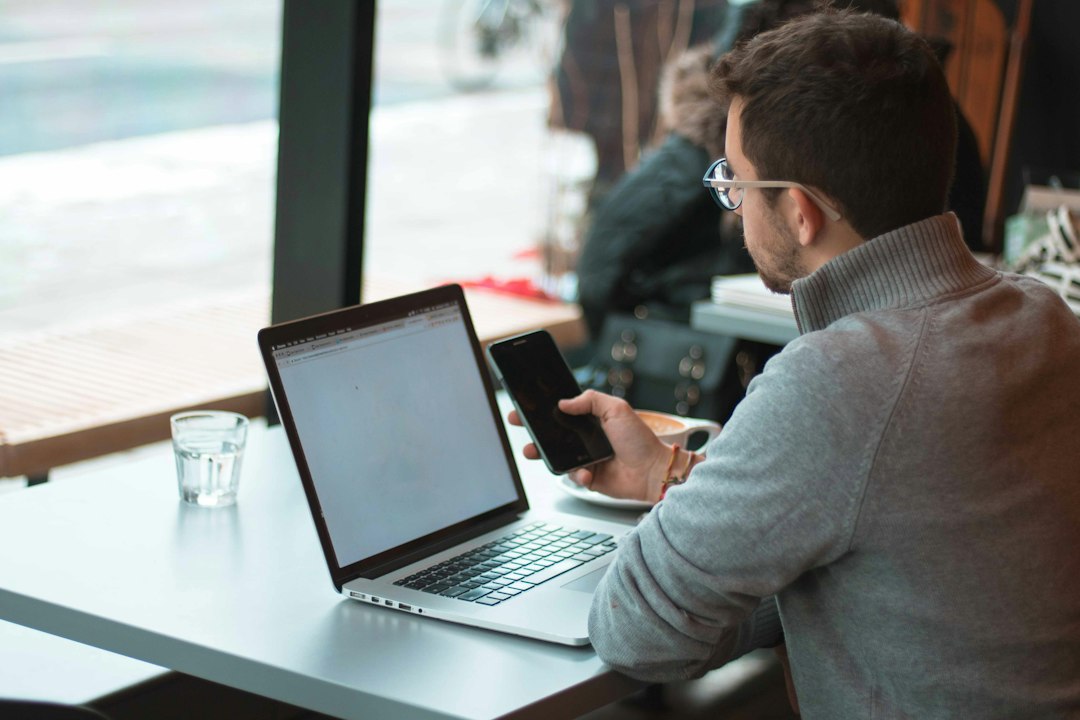
Public Wi-Fi Risks for Students: Stay Connected Without Getting Hacked
Free Wi-Fi is everywhere: libraries, cafés, trains, shopping centres and campus hallways. For students it can save mobile data and make homework easier. But a public network is shared with strangers, and you rarely know who set it up or how well it is protected. The good news is that a few habits remove most of the risk.
What can actually go wrong?
Modern websites and apps usually encrypt your traffic, which has made public Wi-Fi safer than it used to be. Risks still exist, especially when networks are fake or devices are poorly set up.
- Fake hotspots ("evil twins"): An attacker creates a network with a believable name, such as "Cafe_Free_WiFi", and waits for people to join. Anything you do through it could be watched or redirected.
- Fake login pages: Some networks send you to a page asking you to sign in with your email, social media or school account "to get online". That page may be built to steal your password.
- Unencrypted networks: Open networks with no password give you less protection from people nearby who are able to snoop on traffic.
- Weak device settings: If file sharing is on or your software is out of date, other devices on the same network may have an easier way in.
- Warnings you click past: Browser security warnings can be a sign that something is interfering with your connection.
Before you connect
- Confirm the network name. Ask staff or check a sign for the exact name. Do not just pick the strongest-looking one.
- Turn off auto-join. Phones and laptops can connect automatically to networks with familiar names. Disable this for public networks and choose "forget network" when you leave.
- Update your device. Security updates fix known weaknesses that attackers try to use.
- Turn off sharing features. Switch off file sharing and nearby sharing tools like AirDrop or similar options unless you need them.
While you are connected
- Be careful with sensitive tasks. Avoid online banking, shopping with a card and changing passwords on public Wi-Fi. Use mobile data for these instead.
- Check the address. Make sure the site starts with https and the name is spelled correctly. A padlock alone does not prove a site is trustworthy, so still watch for lookalike addresses.
- Never ignore certificate warnings. If your browser says a connection is not private, stop and leave the page.
- Be suspicious of extra sign-in requests. A hotspot page that asks for your social media or school password is a red flag. Real hotspots rarely need that.
- Do not install anything the network asks for. A "required" app or certificate from a Wi-Fi page is a warning sign.
- Log out of accounts when you finish, especially on shared or school computers.
Is a VPN the answer?
A VPN encrypts the connection between your device and the VPN provider, which can add protection on untrusted networks. However, it is not magic. It does not stop phishing, malware or you typing your password into a fake site. You are also trusting the VPN company with your traffic, so avoid unknown free VPN apps, which may collect data or contain harmful code. If you use one, choose a well-reviewed provider and ask a parent or teacher to help check it.
Your best backup: strong account protection
Even careful people make mistakes, so protect your accounts in case a password is exposed. Use a unique password or passphrase for each important account and turn on two-factor authentication. That way, a stolen password alone is not enough to get in.
A simple safer option: your phone hotspot
If you need to do something private, your own mobile data or a personal hotspot is usually safer than an unknown public network. Set a strong hotspot password and do not share it widely.
If something feels wrong
- Disconnect from the network and forget it.
- Change the password of any account you signed into, starting with email, from a trusted connection.
- Check account security settings for unfamiliar logins or devices.
- Tell a parent, teacher or school IT team, especially if a school account was involved.
Keep learning from trusted sources
For videos and reports, stick to official sources rather than random links. Search the YouTube channels or websites of organisations such as the UK National Cyber Security Centre, the US Cybersecurity and Infrastructure Security Agency (CISA), the Federal Trade Commission's consumer advice site, or Internet Matters, and look for their guides on public Wi-Fi and account security. Many publish free PDF guides you can download. Check that you are on the organisation's real website before downloading anything.
Quick checklist
- Verify the network name.
- Turn off auto-join and sharing.
- Save private tasks for mobile data.
- Do not ignore security warnings.
- Use unique passwords and two-factor authentication.
Public Wi-Fi does not have to be scary. With a little caution, you can use it for what it is good at and keep your private life private.