
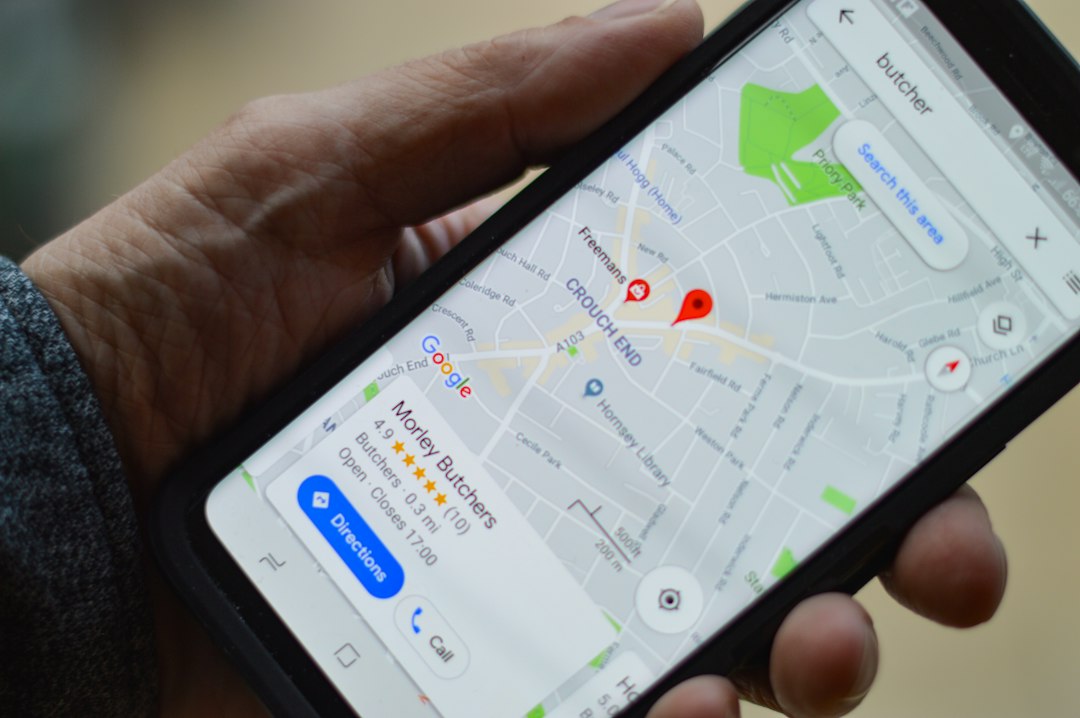
Snapchat Snap Map Privacy Settings: Share Fun, Not Your Location
Snap Map is a Snapchat feature that shows a map with friends' Bitmojis and some public Snaps from around the world. It can be fun for meeting up. But location is some of the most sensitive information you have, because it can show where you live, where you go to school and when you are alone. This guide helps you choose who sees it, and when.
Why location sharing matters
A pin on a map is more than a dot. If you check in at the same places each day, someone could work out your routine. Problems usually start in three ways:
- Friend lists that are too big: You may have accepted people you do not really know, such as friends of friends or random adds.
- Forgotten settings: You switched sharing on once for a trip and never turned it off.
- Screenshots: Even if you share briefly, someone can capture a map and post it elsewhere.
Step 1: Open your Snap Map settings
- Open Snapchat and go to the Map.
- Tap the settings (gear) icon at the top of the screen.
- Look for the option about who can see your location.
Menus change as apps update, so if yours looks different, search Snapchat's help pages for "Snap Map" to find the current steps.
Step 2: Choose the safest option
Snapchat offers choices like these:
- Ghost Mode: Your location is hidden from friends on the map. This is the most private choice and a good default for most teens.
- My Friends: All your Snapchat friends can see you. Only use this if you are sure every friend is someone you know and trust in real life.
- Select friends: You can share only with chosen people, or with all friends except certain ones. This is better than sharing with everyone, but you need to review it from time to time.
If you are unsure, start with Ghost Mode. You can always share with a specific friend later, such as when you are meeting up, and then switch it off again.
Step 3: Check your phone's location permission
Snapchat also needs permission from your phone to use location. In your phone's settings, find Snapchat under apps or privacy and look at the location option. Where possible, choose an option that allows location only while you use the app, or turn it off completely. Remember that Ghost Mode and phone permissions are separate controls, so check both.
Step 4: Clean up your friends list
Privacy settings are only as strong as the people on your list. Scroll through your friends and ask yourself:
- Do I know this person offline?
- Have they ever made me uncomfortable or asked personal questions?
- Would I be happy for them to know where I am right now?
If the answer to any of these is no, remove or block the account. You do not need to explain yourself.
Step 5: Think before you post publicly
Snaps you choose to submit to public stories or map features can be seen by people outside your friends. Before posting, check the background for school uniforms, street signs, your house number or a regular hangout. Posting after you have left a place is safer than posting live.
Tips for families
- Sit down together and look at the settings. Make it a conversation, not a punishment.
- Agree on a rule, for example Ghost Mode on by default and location shared only with close friends or family when needed.
- Explore Snapchat's Family Center, an optional tool that gives parents some oversight of who their teen is talking to without reading the messages. Check Snapchat's help pages for how it works.
What to do if someone misuses your location
If someone shows up uninvited, mentions where you were without being told, or pressures you to share your location, take it seriously:
- Switch on Ghost Mode right away.
- Block and report the account inside Snapchat.
- Take screenshots of any messages as proof.
- Tell a parent, teacher or another trusted adult. If you feel in danger, contact local emergency services.
Where to learn more
For the latest instructions, visit Snapchat's official support site at help.snapchat.com and search for Snap Map and Family Center. For general guidance on privacy and safer social media use, trusted organisations such as the UK Safer Internet Centre (saferinternet.org.uk) and the National Cybersecurity Alliance (staysafeonline.org) publish free tips and resources. When watching videos or downloading guides, stick to official channels and well-known safety organisations.
Quick checklist
- Turn on Ghost Mode unless you have a reason not to.
- Review your phone's location permission for Snapchat.
- Remove friends you do not know well.
- Check backgrounds before you post.
- Block, report and tell someone you trust if anything feels wrong.
Your location is yours to share. Keeping it private is not being boring, it is being smart.