
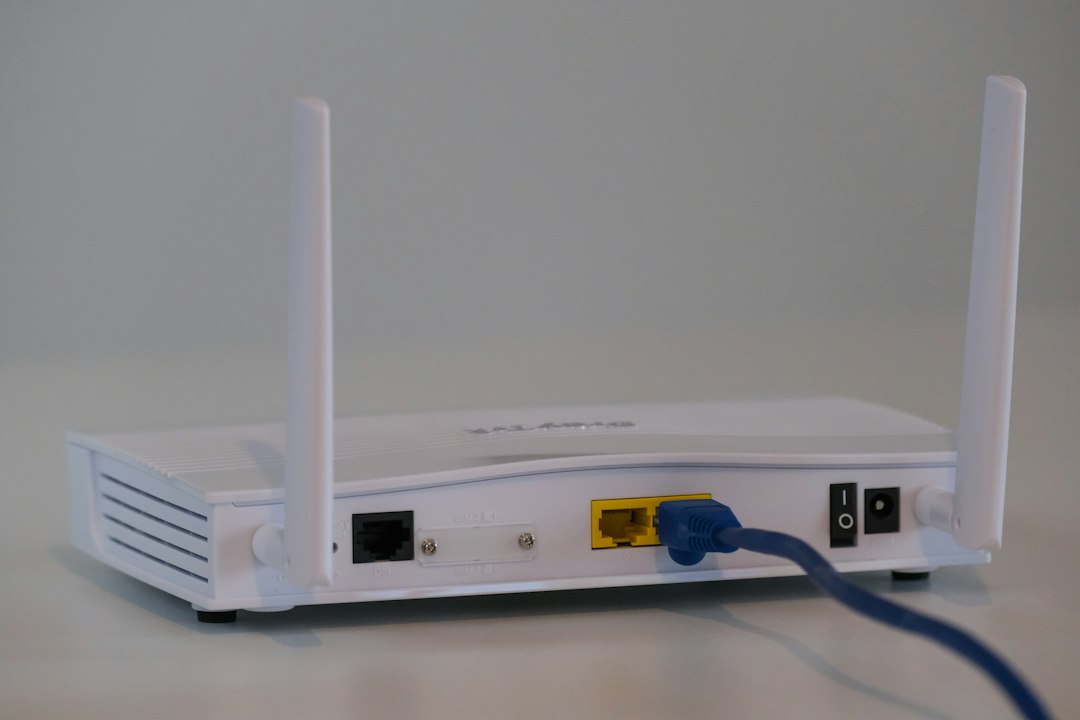
Home Wi-Fi Router Security: A Teen and Family Lockdown Guide
Your home router is like the front door of your digital life. Phones, laptops, consoles, smart TVs and even speakers all connect through it. If that door is weak, attackers or nosy strangers may be able to slip in. The good news is that you can make it much stronger in about 20 minutes.
Important: The router usually belongs to your family or internet provider. Ask a parent or guardian before changing anything, and do the steps together. A wrong setting can knock everyone offline.
Why routers get targeted
Many people set up a router once and never look at it again. Common weaknesses include:
- The original admin password was never changed.
- The Wi-Fi password is short, shared widely or easy to guess.
- The router software is old and has known security flaws.
- Unknown or unused devices still have access.
Step 1: Change the router admin password
The admin password is different from the Wi-Fi password. It lets someone change the router's settings. Many routers ship with a default login printed on a sticker, and default logins are easy for attackers to look up.
- Find the router's login page. The address is usually on the label, often something like 192.168.x.x.
- Sign in with the current details.
- Look for "Administration", "System" or "Password" settings.
- Set a long, unique password and store it in your family password manager or another safe place.
Step 2: Build a strong Wi-Fi password
Use a long passphrase, such as several unrelated words with a number or symbol. Avoid your address, phone number, names or pet names. Do not reuse a password from any of your accounts.
Also check your network name (SSID). Do not include your surname, flat number or anything that identifies your family.
Step 3: Choose modern encryption
In the wireless settings, pick WPA3 if your devices support it. If not, choose WPA2 with AES. Avoid "Open" (no password) and old options like WEP, because they offer little or no real protection.
Step 4: Update the router
Routers receive updates that fix security problems, just like phones and computers. Look for a "Firmware" or "Software update" section. Some routers update automatically, so turn that on if you can. If your router is very old and no longer gets updates, ask your internet provider about a replacement.
Step 5: Use a guest network
A guest network keeps visitors and less secure gadgets away from your main devices. Put these on it:
- Friends and visitors
- Smart plugs, cameras, speakers and other "smart" gadgets
- Old devices that no longer get updates
Give the guest network its own password. If a visitor's phone has malware, it is then less likely to reach your laptop or school files.
Step 6: Turn off risky extras
- WPS: This push-button or PIN connection feature is convenient but can be a weak point. Disable it if you do not need it.
- Remote management: This lets people reach router settings from outside your home. Keep it off unless an adult has a clear reason to use it.
- Unused features: If you do not know what a setting does, leave it alone and ask your provider or a trusted adult.
Check who is connected
Most routers show a list of connected devices. Look through it with your family. You should recognise phones, laptops, consoles and TVs. If you see something unfamiliar, it might be a smart gadget with a strange name, but it could also be an intruder. Disconnect it, change the Wi-Fi password and reconnect only the devices you know.
If you think the router was compromised
- Change the Wi-Fi and admin passwords.
- Update the router software.
- Change passwords for important accounts, starting with email, using a device you trust.
- Contact your internet provider for help.
- As a last resort, factory reset the router using its reset button. This erases your settings, so first note any login details your provider gave you.
Quick family checklist
- Admin password changed and saved safely
- Strong Wi-Fi passphrase, not reused
- WPA3 or WPA2-AES turned on
- Router software up to date
- Guest network set up for visitors and smart gadgets
- WPS and remote management turned off
- Connected device list reviewed every few months
A secure router will not stop every online threat, so keep using strong passwords, two-factor authentication and updates on your devices too. But locking the front door is a smart first step, and it protects everyone in your home.