
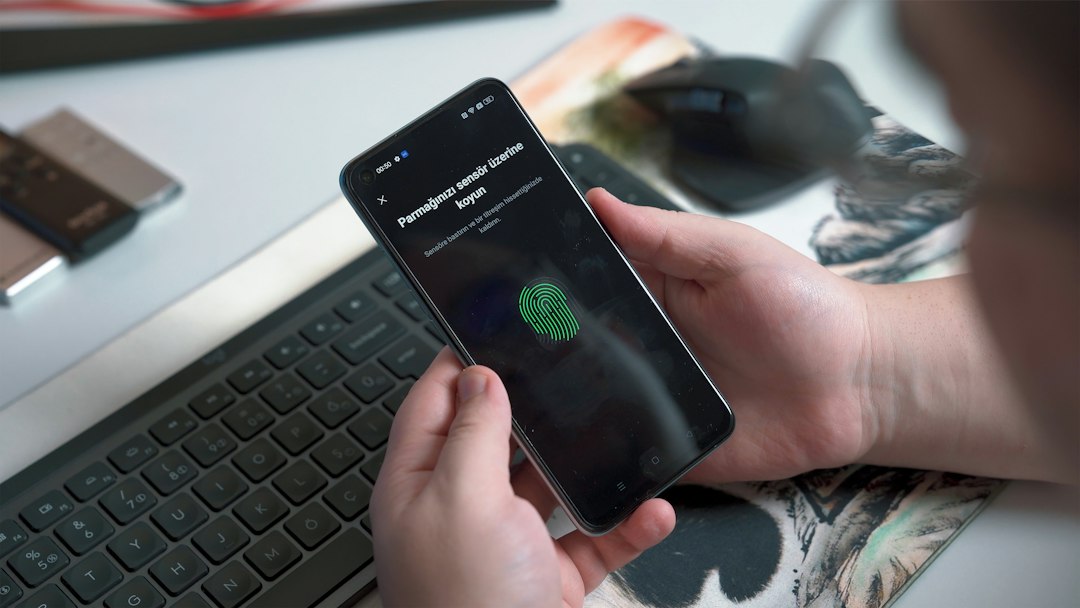
Passkeys Explained: The Password-Free Login Every Teen Should Try
You have probably seen the prompt: "Create a passkey for faster, safer sign-in." Many teens tap "Not now" because it sounds confusing. But passkeys are one of the biggest upgrades to everyday account security in years, and they are easier to use than passwords.
What is a passkey?
A passkey is a login method that replaces your password. Instead of typing a secret word, you unlock your device with a fingerprint, face scan or screen PIN. Behind the scenes, your device and the website use a pair of digital keys. The private key stays on your device. The website only keeps a public key, which is useless to a thief on its own.
Why passkeys beat passwords
- Nothing to guess. There is no weak password like "football123" for criminals to crack.
- No reuse problem. Each passkey is created for one specific site or app, so one breach cannot unlock your other accounts.
- Resistant to phishing. A passkey only works on the real website it was created for. If you land on a fake login page, the passkey simply will not work. That matters because fake login pages are behind many hacked gaming, social and school accounts.
- Nothing to leak. A data breach at a company cannot expose your password, because there is not one.
Where can you use them?
Passkeys are supported by major platforms and many popular services, including Google, Apple and Microsoft accounts, and a growing number of shopping, gaming and social apps. Support varies, so look for options such as "Create a passkey" or "Sign in with a passkey" in your account's security settings.
How to set up your first passkey
- Update your phone or computer. Passkeys need a reasonably recent operating system.
- Turn on a screen lock. Use a strong PIN, fingerprint or face unlock. This is what protects your passkeys if someone grabs your phone.
- Open security settings in an account that supports passkeys, such as your Google or Microsoft account.
- Choose "Create a passkey" and approve it with your fingerprint, face or PIN.
- Test it. Sign out, then sign back in using the passkey to make sure it works.
- Keep a backup way in. Do not delete your password or recovery options until you are sure you can get back in.
Common questions
What if I lose my phone? Many passkeys sync through your account's password manager or keychain, such as iCloud Keychain or Google Password Manager. That means a new device can get them back after you sign in and verify. Make sure your recovery email, phone number and backup codes are up to date.
Can I share a passkey with a friend? You should not. A passkey is tied to your identity, so treat it like your house key. If you need to share something, such as a streaming account, ask a parent about a proper family plan instead.
Is my fingerprint sent to the website? No. Your fingerprint or face scan only unlocks the private key on your own device. It is not sent to the website.
Do I still need two-factor authentication? On accounts where passkeys are fully supported, the passkey itself combines something you have (your device) with something you are or know (biometrics or PIN). For accounts without passkeys, keep using a strong, unique password plus two-factor authentication.
Mistakes to avoid
- Using a short, easy-to-guess phone PIN. Anyone who knows it could approve a passkey login.
- Letting friends or siblings add their fingerprint or face to your device.
- Ignoring recovery settings, then getting locked out of an account.
- Trusting messages that say "Your passkey expired, click here." Real services do not ask you to approve passkeys through random links.
Learn more from trusted sources
If you prefer to watch or read, look for passkey explainers on the official support pages and verified YouTube channels of Google, Apple or Microsoft. For independent security advice, the National Cyber Security Centre (ncsc.gov.uk) and the US Federal Trade Commission's consumer site (consumer.ftc.gov) publish clear guides, and some offer downloadable PDF leaflets. Always type the site address yourself rather than following a link from a message.
The bottom line
Passkeys will not remove every online risk, and you still need to watch out for scams and pressure tricks. But they take away a huge weak spot: passwords that can be guessed, stolen or typed into a fake page. Start with your email and main gaming or social accounts, keep your recovery options current, and ask a parent or guardian to set them up with you if you are unsure.
Comments (0)
You have to login to post a comment.
No comments yet. Be the first to comment!