
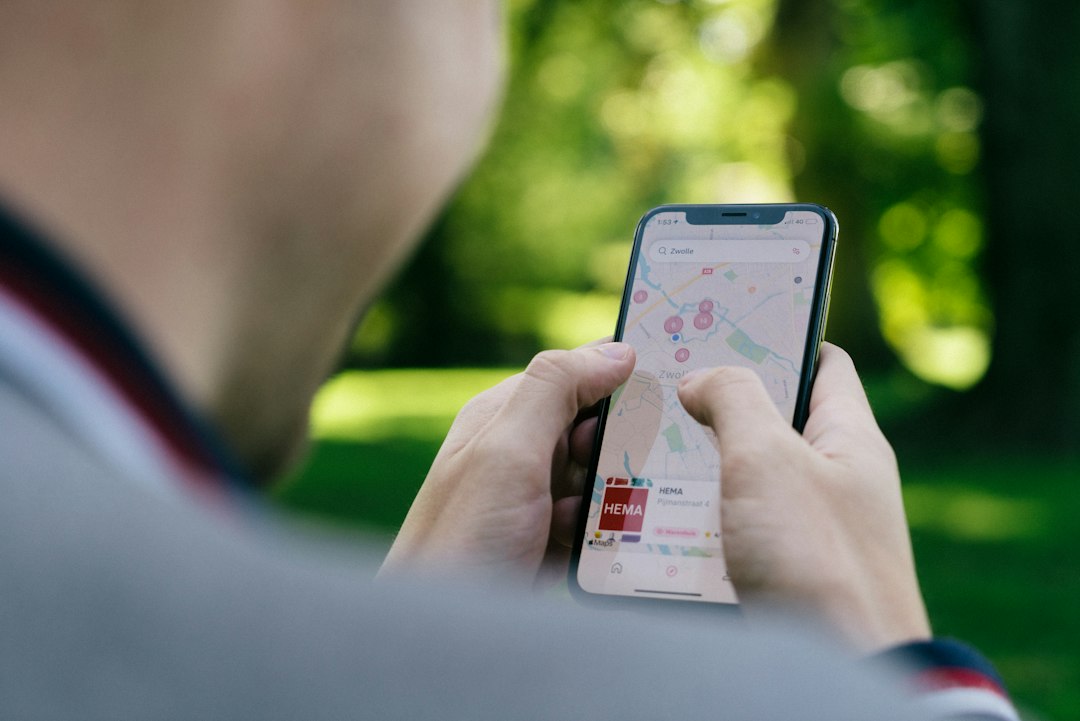
Location Sharing on Your Phone: Who Can See Where You Go?
Most teens know not to post their home address online. But your phone may be sharing something almost as revealing: your location. Maps, weather apps, social apps, games and camera tools often ask for it, and many people tap "Allow" without thinking. This guide shows how to find out who can see where you are and how to limit it.
Why location data matters
One location ping may seem harmless. Over days and weeks, though, location data can show where you live, which school you attend, when you are home alone and which places you visit regularly. In the wrong hands, that pattern can be used for stalking, harassment, or convincing scams that make a stranger seem like someone who knows you.
It also isn't only about strangers. Location sharing can create pressure between friends or partners, and some people feel they have to keep it on to prove trust. You are allowed to decide who sees your location and for how long.
Step 1: Check app permissions
Each app should only get the location access it truly needs. Menu names vary slightly by phone and software version, but the process is similar.
- iPhone: Open Settings, then Privacy & Security, then Location Services. Tap an app to choose Never, Ask Next Time Or When I Share, While Using the App, or Always.
- Android: Open Settings, then Location, then App location permissions. Choose options such as Allow only while using the app, Ask every time, or Don't allow.
As a rule of thumb, a map or ride app may need location while in use. A simple game, a photo filter or a shopping app usually does not. Be especially careful with "Always" or "Allow all the time". Few apps need that.
Step 2: Turn off precise location when you can
Both iPhone and Android let you share an approximate location instead of an exact one. A weather app only needs to know your general area, not the exact building you are in. Look for the Precise Location toggle (iPhone) or Use precise location (Android) inside the app's location settings and switch it off where exact tracking is not needed.
Step 3: Review who you share with
Apps like Apple's Find My, Google Maps and some social platforms let you share live location with specific people. Open the sharing section of each app and ask yourself:
- Do I know and trust everyone on this list in real life?
- Does each person still need to see my location?
- Could I share for one hour or one day instead of indefinitely?
Remove anyone you no longer need on the list. Choosing a time limit for trips, meet-ups or travel home is usually safer than leaving it on permanently.
Step 4: Look at your social apps
Social and messaging apps may add location in more than one way: tagged posts, location stickers, live maps or check-ins. Go through each app's privacy settings and look for anything mentioning location, nearby people or maps. If you have already covered Snapchat, do the same checks in other apps you use. Also think about posting in real time. Sharing a photo after you have left a place is safer than sharing it while you are still there.
Step 5: Talk with your family, not just about them
Many families use location sharing for safety, and that can be reasonable, especially when you are travelling alone or walking home. The best approach is an open conversation. Agree on when it is used, who can see it, and what happens if someone wants it changed. Sharing with trusted parents or carers is very different from sharing with an online friend you have never met.
Warning signs to take seriously
- Someone online asks which school you go to, where you live, or where you are right now.
- A new contact pressures you to turn on live location "to prove who you are".
- An app asks for location for no obvious reason.
- A stranger seems to know places you have been.
If any of these happen, stop sharing, block the account, save screenshots, and tell a trusted adult. You can also report the account to the platform.
A quick five-minute checklist
- Open your phone's location permission list.
- Change any "Always" setting to "While using" or "Never" unless there is a good reason.
- Turn off precise location for apps that do not need it.
- Review who can see your live location and remove anyone you do not need.
- Check the location settings in your social and gaming apps.
Keep learning from official sources
For the most accurate steps for your exact device, use the official help pages from Apple Support or Google's Android help centre, as menus change with updates. National cyber safety agencies and child-safety organisations also publish free guides and reports on location privacy. Look for the original publisher's website rather than a reposted copy.
Location settings are not about being paranoid. They are about staying in control of your own story, so you decide who knows where you are, and when.
Comments (0)
You have to login to post a comment.
No comments yet. Be the first to comment!