
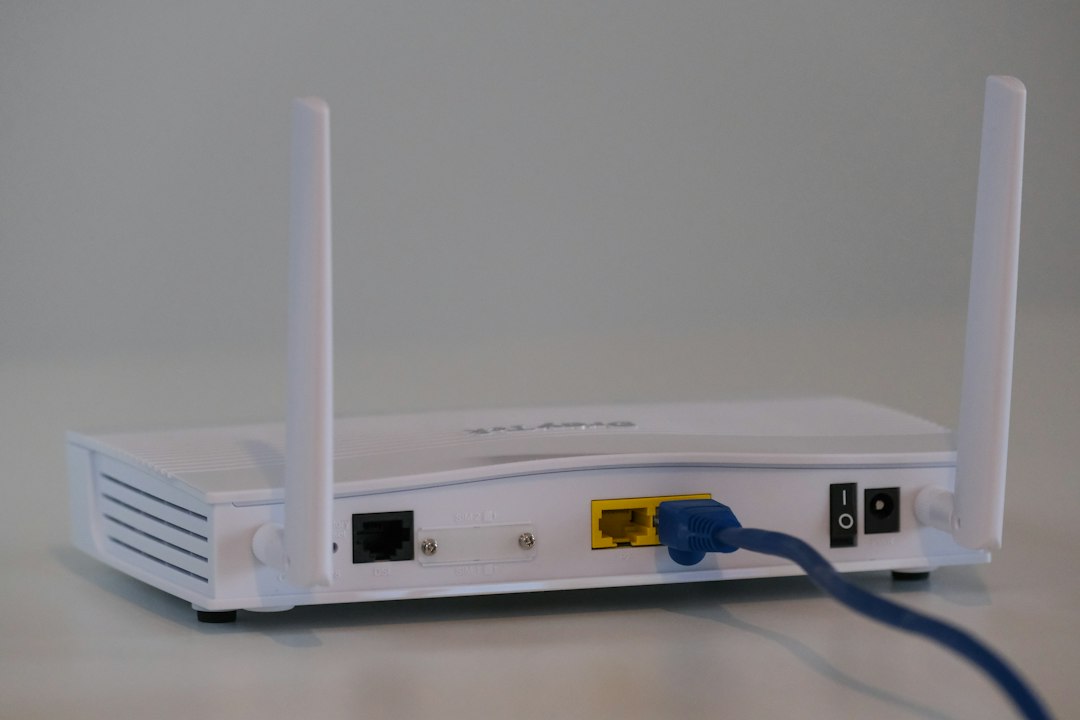
Home Wi-Fi Security: A Teen's 10-Minute Router Checklist
You probably think about your phone, your gaming account and your socials when you think about security. But there is one small box in the corner of your home that connects all of them: the router. If someone gets control of it, they may be able to see which sites your household visits, slow down your connection, or try to reach other devices on the network.
The good news is that locking down a router does not take technical skills. Grab a parent or guardian, set aside about ten minutes, and work through this checklist.
Why routers get overlooked
Most routers are set up once by an internet provider and then forgotten for years. Many still use the settings they shipped with, and old software can contain known weaknesses. Attackers do not need to target you personally. They can simply look for routers that were never updated or still use easy default passwords.
Step 1: Change the router admin password
There are actually two passwords on your router. One is the Wi-Fi password you type into your devices. The other is the admin password that lets someone change the router's settings. The admin login is often printed on a sticker on the router, and it is sometimes something very basic.
- Check the sticker or your provider's instructions to find the router's settings page and how to log in.
- Replace the default admin password with a long, unique one.
- Store it in a password manager, not on a sticky note stuck to the router.
Step 2: Set a strong Wi-Fi name and password
Your Wi-Fi password should be long and not guessable. A passphrase of several random words works well and is easier to type on a TV or console than a jumble of symbols.
- Avoid names, birthdays, addresses or phone numbers.
- Do not reuse a password from any of your accounts.
- Change the network name if it reveals your family name or address.
Step 3: Choose the best encryption
In the wireless settings, look for the security type. WPA3 is the newest option if your router and devices support it. Otherwise, WPA2 is a reasonable choice. Avoid "Open", "WEP" or old "WPA" modes, because they are weak or offer no protection.
Step 4: Update the router software
Router makers release firmware updates to fix security problems. Some routers update automatically, while others need you to click a button in the settings page. If your router is very old and no longer receives updates, ask your internet provider about a replacement. That is often the safest fix.
Step 5: Turn off risky extras
- Remote management: Unless a parent knows exactly why it is on, turn it off so the settings page can only be reached from inside your home.
- WPS: The push-button or PIN connection feature is convenient but can be a weak point. Disabling it is usually a good idea.
- Unknown port forwarding rules: If you see settings you or your family did not create, ask your provider before changing anything.
Step 6: Use a guest network
Many routers let you create a separate guest network. Use it for visitors and for smart gadgets such as speakers, cameras or light bulbs. If one of those devices has a weakness, it is kept apart from the laptops and phones that hold your personal data.
Step 7: Check who is connected
Your router's settings or app usually show a list of connected devices. Look for anything you do not recognise. Remember that some devices have odd names, so check your own gadgets first. If something still looks wrong, change the Wi-Fi password, which will disconnect everything so you can reconnect only the devices you trust.
Warning signs to watch for
- You are suddenly locked out of the router settings.
- Settings have changed and nobody in the family did it.
- Websites redirect you to strange pages or pop-ups appear on trusted sites.
- Your internet is unusually slow and you cannot work out why.
These signs can have harmless causes, but they are worth a conversation with a parent and your internet provider. A factory reset followed by a fresh, secure setup is often the next step.
Where to keep learning
For trustworthy videos and reports, look to official sources such as your country's national cybersecurity agency, your internet provider's help pages, and the router manufacturer's support channel. Many of them publish short how-to videos and downloadable PDF guides. Always open them from the official website itself rather than from a link in a message or an ad, and check that the address looks right before you download anything.
The quick recap
- Change the router admin password.
- Use a long, unique Wi-Fi passphrase.
- Pick WPA3 or WPA2 security.
- Install router updates.
- Switch off remote management and WPS.
- Put guests and smart gadgets on a guest network.
- Review connected devices now and then.
Do this once, then check again every few months. A secure router will not stop every online threat, but it closes one of the easiest doors, and it protects everyone in your home at the same time.
Comments (0)
You have to login to post a comment.
No comments yet. Be the first to comment!